Features
A task takes four steps in Omnido: capture, check, overview, go to source. This page shows what each step does and where it stops.
Capture
- On your Mac, you select text and open Omnido with the hotkey. The selected text and the available context come along as the source, such as the app, the window title or the page address.
- In the browser, you capture in the web app.
- You add photos and PDFs as attachments: up to 10 per capture, each at most 20 MB. The guide Turn a letter into a task walks through the deadline and original document.
- In the iPhone/iPad app: share to Omnido, Siri or the shortcut “Capture task”, “Dictate” and “Scan letter” with up to 10 pages.
- Through AI programs: Claude Code or another AI program creates captures over MCP with an access key.
Without a connection
If a capture cannot reach the server, it waits on the device with its attachments and goes out as soon as the connection is back. The app then shows “1 capture is waiting for a connection.” Signing out before that deletes waiting captures. The task list itself is not fully usable offline.
Check in the inbox
You check the AI’s suggestions right away in the second step, “Check the task”, or later in the inbox. Captures from sharing, Siri or an AI program land there too. Dashed fields still need a check; under “Not sure” you tap what’s right. You change what does not fit. “Accept” turns the capture into a task, “Discard” moves it to the trash. A capture that does not become a task leaves the inbox after 7 days.
AI analysis
Before the first AI analysis, Omnido asks whether your captures may go to the AI.
Without AI
- Goes to the AI
- Nothing. You fill in the fields yourself.
Short AI analysis
Without a subscription
- Suggests
- A title and a short description, never a date or a category.
- Goes to the AI
- Only the typed or selected text of the capture, at most 8,000 characters: no pages (photos, PDFs), no source, no categories, neither “About me” nor “Learned”, and no other tasks.
- Replaced with placeholders
- E-mail addresses, phone numbers, IBANs and card numbers.
Full AI analysis
With a subscription or during the free trial
- Suggests
- Title, description, date, category and priority. It checks whether the task already exists and reads photos and PDFs, up to 10 pages per PDF. With “Refine” you tell it more.
- Goes to the AI
- The text, pages (photos, PDFs) and source of the capture, “About me”, your categories, the names of up to 50 people from your earlier tasks, your answers in “Refine”, for a dictated capture the “Learned” entries whose misheard words appear in it, and, for the duplicate check, the title and description of similar tasks. With the full analysis also up to 5 similar earlier tasks from the last 12 months, done and dropped ones too, with title, status, priority, category, date and repeat, without the description.
- Replaced with placeholders
- Phone numbers, IBANs and card numbers, except in photos and PDFs Omnido cannot read itself. E-mail addresses go along unchanged so the AI can recognise senders.
What exactly goes to the AI and who processes it is in the Privacy policy and in the app under “What goes to the AI?”.
Overview
Start first shows the captures in the inbox, then Overdue and Today, and last up to three tasks without a date. Under “All tasks” you sort by Time or by Area. Each area, such as work or personal, has its own categories. Tasks can have a priority, repeat as a series and are searchable. Reminders come as a “Daily summary” and at the due time. Deleted tasks stay in the trash for 30 days.
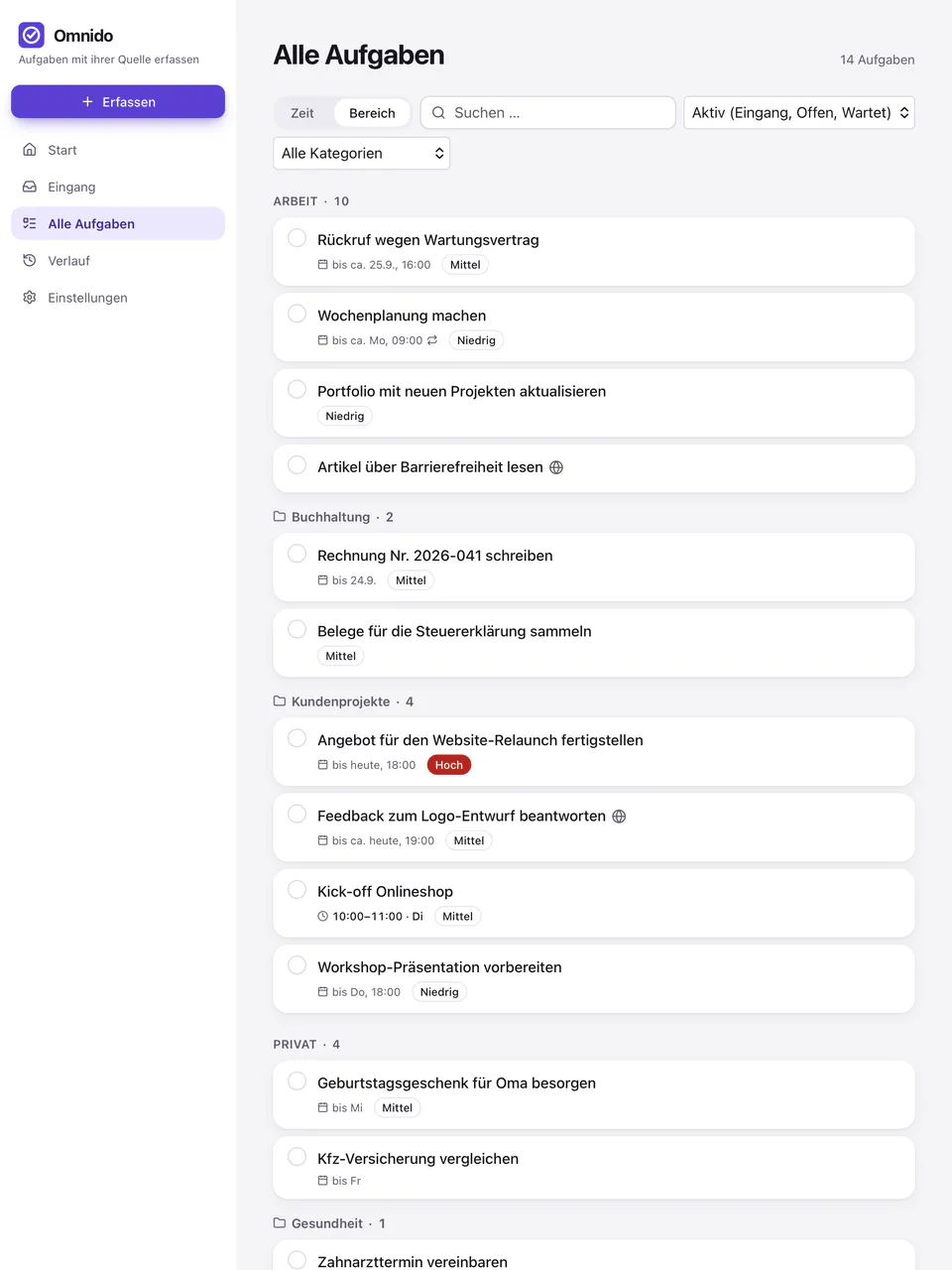
Screenshots from the iPad and iPhone app with sample data, German interface.
Source and “Go to source”
A task keeps the sources its capture path delivers: where it came from, such as Outlook, Teams, the browser, WhatsApp or the terminal, plus an excerpt of up to 4 KB. A task can have several sources. “Go to source” opens the best stored way back. How far it leads depends on the source:
- Outlook mail or Teams message
- That exact message With a connected Microsoft account, for Teams a work or school account, and a unique match. Otherwise the conversation or nothing.
- Web page
- The page If you selected text on the Mac, the browser jumps to that text, as long as the page still contains it.
- WhatsApp Web Only if you captured in WhatsApp Web, and not the single message. From the WhatsApp app on the Mac there is no way back.
- Claude Code or Terminal
- No link The session at a glance A source from the web terminal shows in its details whether the session still runs, and afterwards the command to resume it. From the terminal on the Mac there is no way back.
Outlook and Teams (Microsoft 365)
You connect a work or school account, a personal Microsoft account or both. With a connected account, Omnido looks for the Outlook or Teams message behind a task; Teams only with a work or school account. With “Add appointments to Outlook”, an appointment from Omnido lands in that account’s Outlook calendar. The sync brings moved, renamed or deleted Outlook appointments back when you open the app or pull to refresh, never in the background.
Omnido in other apps
Omnido is an MCP server for Claude Code and other AI programs that accept an access key. You create the key under Settings → “Omnido in other apps”, with “Read only” or “Read and change”; an AI program cannot delete anything. “Remove” ends the access at once.
The other way round, Omnido connects further MCP servers, for example a web terminal session. You set this up under Settings → MCP servers. Omnido reads there; it writes only through a write access you set up yourself.
Your data
Under Settings → Account, “Export data” downloads all your tasks, captures, attachments, categories, “About me” and “Learned” as a ZIP file. Access keys and sign-in data are not included. “Delete account” deletes your account with all its data right away, without a trash. More in the Privacy policy.